All articlesGuides
How to stop students sharing your course videos
Lock your course videos with DRM, watermark them with each student's name or email and limit devices per login to stop most sharing.

Killian Hédou
10 min read
You spend weeks recording new videos for your course. The first semester goes well, and students keep signing up. The next semester, sales slow down, and the one after is worse. You can't work out why, until someone sends you a link to a forum post plastered with your videos. Hundreds of people, maybe thousands, have been watching your course for free.
This happens to plenty of tutors, and many don't know piracy is what's hurting their sales. Once you protect your videos, your course keeps selling the way it did that first semester. Anyone who wants your lessons has to sign up.

So how do students share your videos?
These are five of the most common ways:
- A shared login: one student buys the course and gives the password to a friend, or to a younger sibling who takes the subject next year.
- A download tool: a browser extension or a desktop app saves a full copy of your video in one click.
- A screen recording: a screen recorder captures the lesson while it plays.
- A link in a group chat: a student posts the link to your video on Discord, Telegram or WhatsApp, and everyone in the chat can open it.
- A phone camera: someone films the screen with a phone and gets a rougher copy.
Once a copy gets out, it spreads like an oil spill. Students pass it on to next semester's class and the class after that, and cleaning it up is much harder than stopping the initial leak.
Why the usual fixes don't work
Most tutors start with one of these:
- A password-protected page works until someone posts the password in a group chat.
- A login page keeps strangers out, but anyone who logs in can still save the video and share it.
- Turning off downloads hides the button on Vimeo, Google Drive and many course platforms, but a download tool or a screen recorder gets the video anyway.
- A no-sharing rule on its own doesn't hold: many students agree to it and still pass lessons to a friend or two.
To fix the problem, you need videos only your paying students can watch, and a way to see who's watching and cut anyone off.
What actually works
Each way of sharing has its own fix:
| How it's shared | What deals with it |
|---|---|
| A shared login | A device limit and one play at a time |
| A download tool | DRM: the file won't play |
| A link in a group chat | DRM: the video only plays inside your course |
| A screen recording | DRM and the watermark |
| A phone camera | The watermark: the copy shows who was watching |
1. Lock every video with DRM
DRM, short for digital rights management, locks each video so it only plays inside your course, for a student who's logged in. A downloaded copy won't play anywhere else.
If your course platform doesn't have DRM, either host your videos on a service that does and show them on your course pages, or switch to a platform with DRM built in. Before you choose, ask whether the video itself has DRM or only sits behind a login page.
Once you've moved your lessons, set any old Google Drive folders and unlisted YouTube videos to private. Anyone who still has those links can watch and download them.
Most DRM has a weak spot. A screen recording of a locked video often comes out black. But a student can change a browser setting in a few seconds, and the recording then captures the lesson. More and more of them know of this trick.
Lectur locks every video with DRM before anyone can play it, and closes that weak spot: if a student changes that browser setting, the lesson won't play until they change it back.
2. Watermark every video with the student's name or email
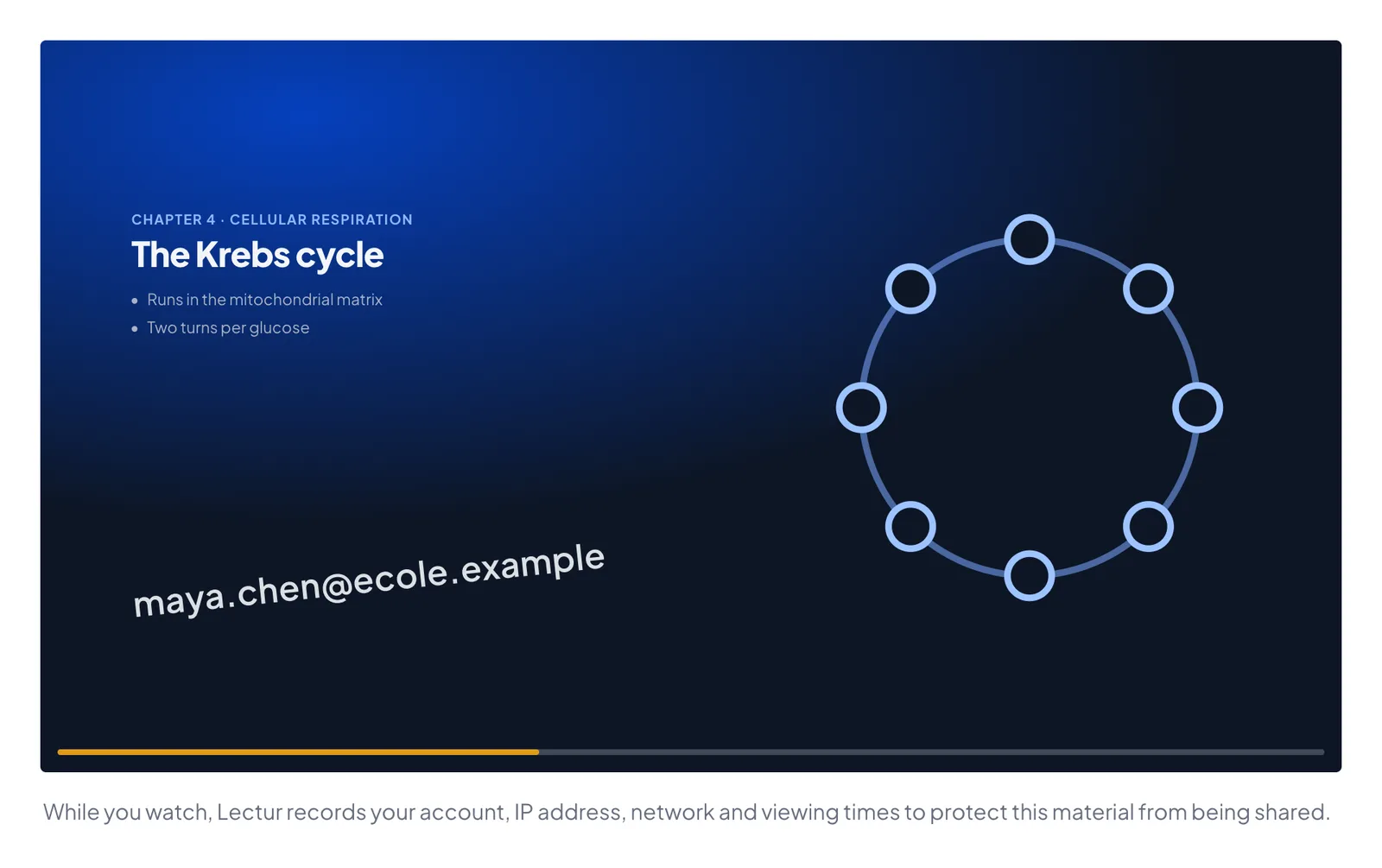
DRM can't stop a student filming the screen with their phone. So put something on the picture that identifies whoever is watching, such as their name or email. Any copy filmed or recorded from the screen then shows whose account it came from. The watermark is also a strong deterrent since students hesitate to share a video with their own name on it.
Choose a watermark no one can switch off, and one that moves around so a single crop won't remove it. Tell students before they start that their name or email will be on every video.
Lectur puts each student's email on the picture and moves it to a new spot every few seconds. If someone hides or removes it, the lesson stops and shows Playback paused until the email is back.
3. Limit how many devices can use one login
It's the night before the exam, and your course is playing on four laptops at once, all signed in as the same student. You stop that by limiting how many devices each login can use, and how many can play at once.
Set the device limit to what one person uses: a laptop, a phone and a tablet make three. Nobody can watch two lessons at once, so let each login play on one device at a time. Make sure a student who moves from their laptop to their tablet can keep watching.
Lectur lets you set both numbers. If someone starts a lesson on a second device while the first is playing on another internet connection, they have to press Play here. That stops the lesson on the first device.
4. Monitor who's watching, and block a shared login the same day
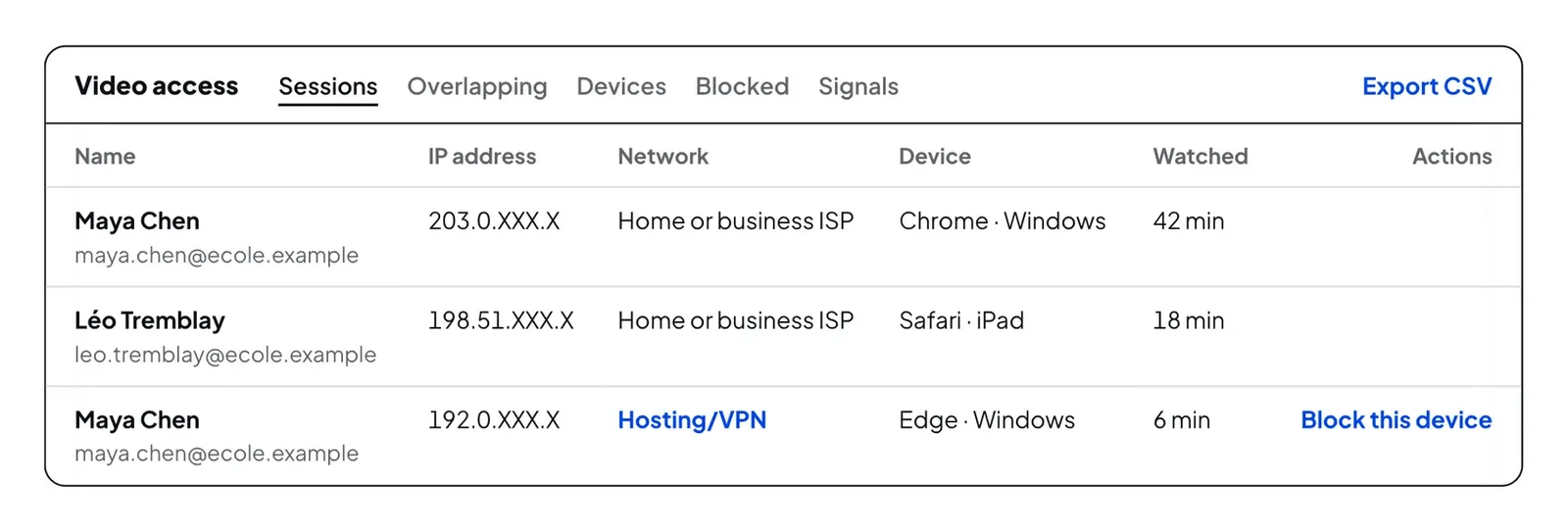
One login has played lesson 3 nine times this week, from three internet connections. Either the student is the most dedicated learner you've ever had, studying in a different café every night, on a different laptop each time, with a quick trip overseas in between, or three people share the login. A viewing log settles it, because it shows which device played the lesson each time, and from where.
Look for accounts playing in two places at once. Before you act, check which devices they were, since a phone moving from Wi-Fi to mobile data can look the same. Then download the log and block that one account or device. You have a dated record, and nobody else in the class loses access.
Lectur's Video access page records who watched what, and alerts you when one account plays on two devices at once. When you block an account, a device or an internet connection, any lesson it's playing stops within a minute. You can also download the log as a spreadsheet. For country limits and more, see how Lectur protects your content.
5. Set the rule before the first lesson
A rule on its own doesn't stop sharing, but with the watermark and the log behind it, students know a shared copy leads back to them. Most students who share a login don't think of it as stealing. They'd lend a friend a textbook the same way. A rule they've agreed to changes that, and gives you something to point to later. Put it in your enrolment terms and say it again in the first lesson:
Your access to this course is for you alone. Every video shows your email, and I keep a record of when and where lessons are watched. Sharing your login, the videos or a recording of them with anyone, family included, breaks these terms. Your access ends, and I reserve the right to take legal action.
If you teach students under 18, send the terms to a parent too.
Test your own course in five minutes
Enrol yourself in your own course with a second email address, then try what a student would.
- Open a lesson, copy the address from the browser bar and paste it into a private window that isn't signed in. If the lesson plays, anyone with the link can watch it.
- Add a free video downloader extension to a browser you rarely use and play a lesson. If you end up with a file that plays on your computer, any student can do the same.
- Sign in on your laptop and your phone and play the same lesson on both. If both keep playing and nothing tells you, a shared login would go unnoticed.
- Record ten seconds with your computer's screen recorder, then play it back. Does it show the lesson, and does anything in the picture say which account was watching?
- Look in your admin pages for a record of who watched what, when and from where. If you can't find one in a couple of minutes, assume you don't have one.
What to do if you find a copy online
Do these the same day:
- Read the watermark on the copy. It shows whose account was used.
- Open the viewing log and check that account's history. The Sessions and Overlapping tabs of Lectur's Video access page show whether the login was shared, and from where.
- Download the log and write down where and when you found the copy.
- Block the account. Avoid blocking an internet connection if you can, since a whole household or student residence may share one.
- Talk to the student in private, with a parent if they're under 18. Start with what you found: "A copy of lesson 6 turned up on a Discord server with your email on it. Do you know how it got there?" Often they lent the login to a sibling or a friend, who made the copy. That still breaks the terms they agreed to, so their access stays closed.
- Ask the site to take the copy down. Most sites accept requests from the copyright owner: YouTube has a copyright removal request, Discord a takedown form, and Telegram handles complaints about public channels and groups. You can't get a copy removed from a private Telegram or WhatsApp chat.
- Remind the class of the rule, without naming anyone.
Talk to a lawyer before you threaten to sue anyone. This guide isn't legal advice.
Frequently asked questions
Can students download my course videos?
They can save a video with a download tool, but if you lock it with DRM, the file won't play.
Can students screen-record my course videos?
DRM often turns the recording black, but with most DRM a student can get around that by changing a browser setting. If a recording does capture the lesson, the watermark shows whose account it came from.
Can anything stop a phone filming the screen?
No. But the phone films the watermark along with the lesson, so the copy still shows whose account it was.
What if a student shares their password?
With one play at a time, two people can't watch at once from different internet connections. With a device limit, the login stops working on new devices once the student reaches the limit. And a viewing log lets you spot suspicious activity, such as one account playing from three places in a week.
Will protection stop some students from watching?
It can. A locked video needs a recent browser, so check that a lesson plays on a laptop, a phone and a tablet. On your sales page, list the browsers that play your lessons, and make your first lesson a free preview with the same protection, so a student can check before they pay. Lectur videos play in Chrome, Edge and Safari on a Mac, iPhone and iPad and on most Android phones, but not in Firefox on a computer or on Linux, and not yet on a Chromebook.
Do I have to change platforms?
DRM, the watermark, device limits and a log of who's watching have to come from your platform or video host, so check which ones yours has. If it's missing any of them, you'll need to switch to get them.
Will students find the watermark and the log intrusive?
Each student sees only their own details, on their own screen, and the log should stay between you and your staff. Tell students what you record and why, in your enrolment terms and before their first lesson.
What about live classes and PDFs?
A live class is as easy to record as a video, so watermark it with each student's name or email the same way. A PDF is even easier to take: a student can download it, forward it, or photograph each page with a phone. You can't stop the photos, so put the student's email on the page itself, on every downloaded copy and over the pages while they read. Lectur does both, and can also lock a PDF so it can't be downloaded.
Share this article
Written by
Killian Hédou
Co-founder · Co-CEO · Head of Australia Operations